

Updating your bank details on Stripe
To update your bank details on your Stripe account, follow these steps:
Step 1: Access Stripe Account
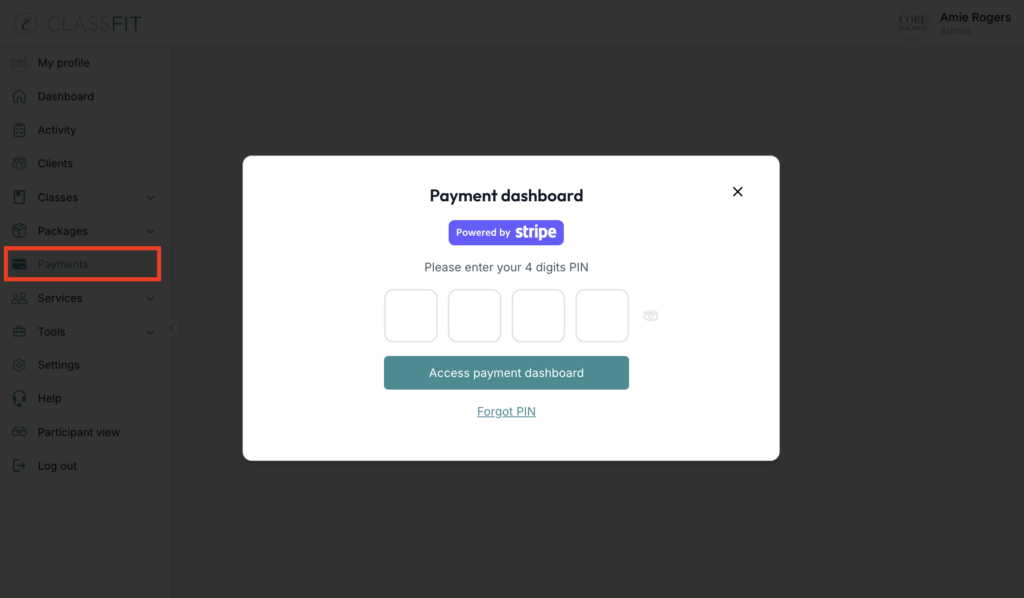
Go to Payments
Log in to your ClassFit account, navigate to the Payments section on the left side menu. It will ask you to enter your Stripe PIN.
Step 2: Access Stripe Express
Enter Stripe Express
You will be redirected to your Stripe Express account. You might be prompted to enter a one-time passcode for security purposes. Once logged in, click on your avatar in the top-right corner of the screen:

Step 3: Update Bank Details
Edit Payout Details
Click on Payout details. Your current bank details will appear on the right side of the window. Click Add an account to input your new bank details:
Remove Old Bank Details
Once you’ve added your new bank account, you should see the option to remove your old bank details. Ensure your new details are saved before completing this step.
If you encounter any issues while updating your bank details, please reach out to Stripe support at [email protected] for further assistance.