

How to remove or update payment card details
You can update your payment card details on classfit.com, our mobile apps or the calendar on your class organizer’s website.
Update your payment card details on the ClassFit mobile apps
Please follow the steps below to edit your payment card details on the ClassFit mobile apps.
- Log into the ClassFit mobile app
- On the navigation menu click Settings.
- Scroll down to the section titled Payment Settings.
- Click the Remove Payment Details button
- Add your new card details and click Add Payment Details
Update your payment card details on classfit.com
Please follow the steps below to edit your payment card details on classfit.com
- Log into classfit.com
- Go to the left side menu and click on Settings. Click on Billing settings tab. Click on the Delete card button.
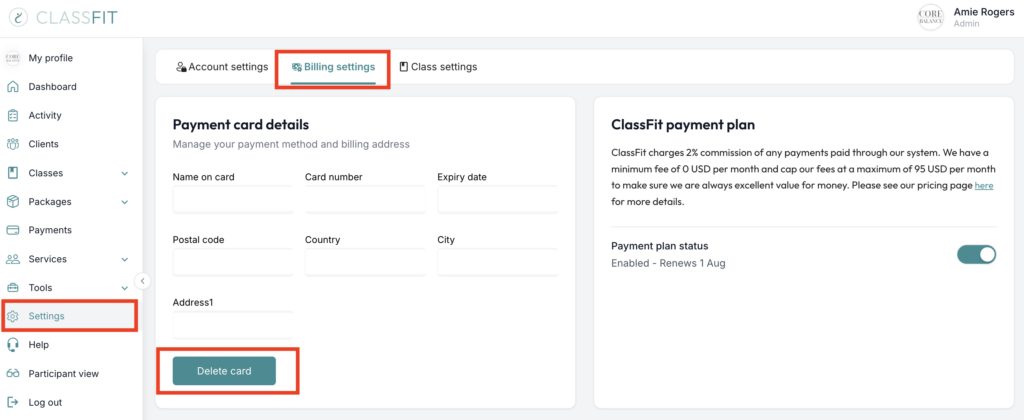
Once you have removed your payment card you will be able to add a new payment card.
Update your payment card details on a website calendar
Please follow the steps below to edit your payment card details on the ClassFit website calendar.
- Log in to your account on the website calendar
- Click My Account (top right)

- Click Info and then scroll down until you see Payment Info.
- Click the “X” Next to your existing card details.


- Click Edit payment info

- Add your new card details and then click Save

If you need any further help with this, please email [email protected].