

Setting Up Payroll
You can use our payroll feature to work out what you need to pay your team members. To access Payroll, select Tools from the left-hand menu, then Payroll.
Adding payroll rules
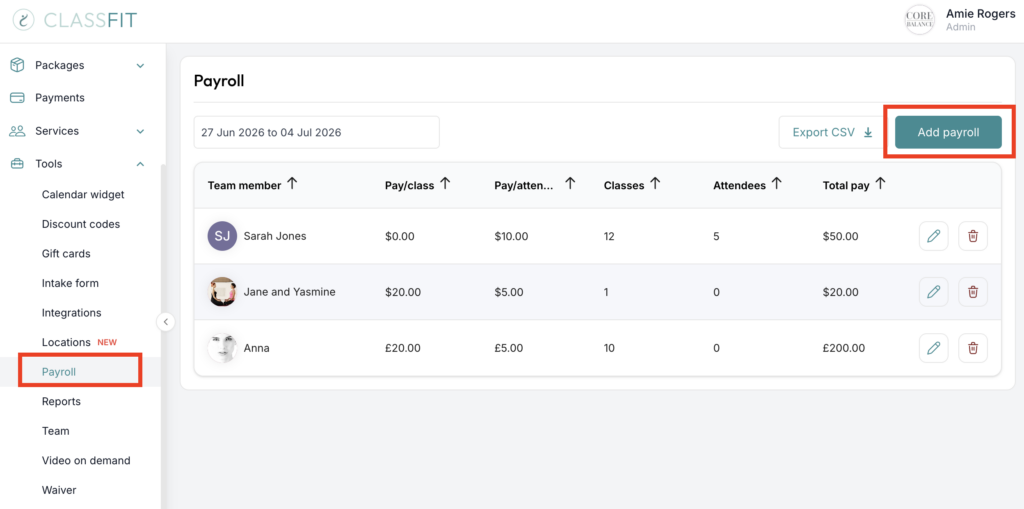
On the Payroll page, click Add Payroll. A pop-up will appear where you can define the pay for each team member. Once complete, click Add payroll.

To export a report, click Export CSV.
What does the attendance figure count?
The attendance figure counts the total number of attendees across the classes in question. For example, if an instructor taught 10 classes and 10 people attended each one, the attendance figure is 100.
Can my team be paid directly from ClassFit?
No. ClassFit cannot pay your team members directly, and it cannot split a payment between you and them.
Everything your clients pay goes into your own Stripe account first, and Stripe pays it out to your bank account. You then pay your team yourself, in whatever way you normally do.
The Payroll tool is there to work out what each team member is owed, using the rules you set. It does not move money and it does not hold a balance for your team. Use Export CSV on the Payroll page to get the figures out for your own payroll or bookkeeping.
To check what has actually landed in your account, see How to get reports from Stripe and How long does it take to get paid.
If you need any further help with this, please email [email protected].