

Creating a Service
If you offer services outside of classes we’ve got you covered. We’ve kept this process as simple as we could, while providing you with lots of flexibility to create services in the right way for you.
Create a service
Once you’re logged in to our website, you can create a service by clicking on Services > Service offerings on the left side menu. Then click on Create service.
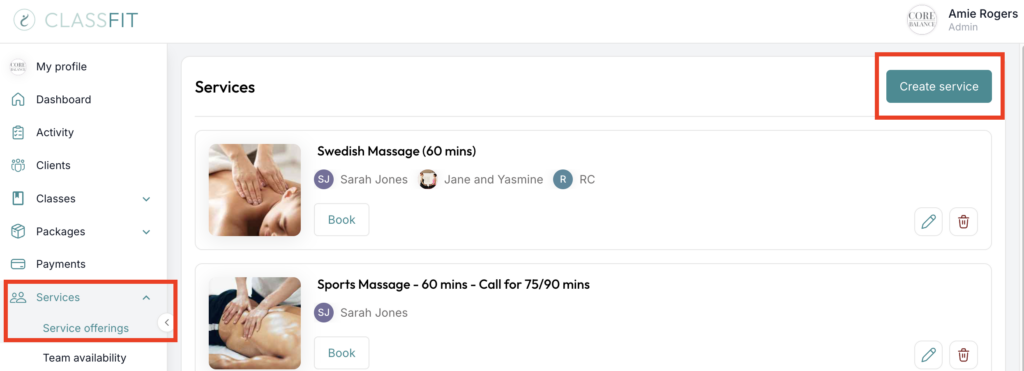
From within Services you can then add your services as well as your instructor availability.
Creating a service is a lot like creating a class. Several of the fields are the same as creating a class which we discuss here, but there are a couple of differences which we’ll outline here.

- Service instructors – Unlike with classes, you can add multiple instructors here so your clients can choose who they want to book the service with where applicable.
- At what intervals to clients book – You might be super flexible and be happy for your clients to book at the 5 minute mark (9.05am, 9.10am, 9.15am etc) or you might want to keep bookings to the 10, 15, 30, or 60 minute intervals.
- How soon can clients book this service (hours) – This ensures that you have enough notice when a client books. For example you wouldn’t want a client booking a service in one hours’ time if you were a 90 minute drive away from the location.
- Buffer time before session (minutes) – This allows you to have a buffer time before the session should you need it to prepare.
- Buffer time after session (minutes) – This allows you to have a buffer time after a session should you need it to recover / tidy up etc.
Once you’ve created your service, you will see it in your service screen. From here you can add more services, as well as edit and book customers into your existing services.
Setting your availability
Once you’ve created your services, you’ll want to set up your availability so clients can book your time. To do this go to Services and click on Team Availability. All of your team will be listed here.
Once you see your individual instructor’s calendar (as below), click on a day to set up your availability.
A popup will appear allowing you to set up your availability for this day. You’ll notice in the picture below that you can add multiple availability intervals to the day, which allows you to work around classes and breaks as required. And you can also apply this availability to all similar days of the week too.
Once saved, you’ll see your availability added to the calendar as below, which you can edit whenever you need to.
Once done, it’s over to your clients to book!
Are services visible to clients?
That is up to you. You do not have to add any availability, so a service can stay hidden and you can book people in manually. If you add the service to your studio and add availability, it becomes visible and clients can book it.
Changing repeating availability
You can change repeating availability on a service. When you make a change on a given date, ClassFit asks whether it applies to that date only or, for example, to every Thursday from then onwards.
If you need any further help with this, please email [email protected].