

Adding teacher profiles
Adding Teacher Profiles
If you have multiple teachers working with you, you may want to create a separate profile for each. You can assign a teacher to each class you create, and the class will show their name, picture, and bio.
Add an instructor in the way you normally would:
Go to the menu on the left side, click on Tools, then Team, then click Add team member.
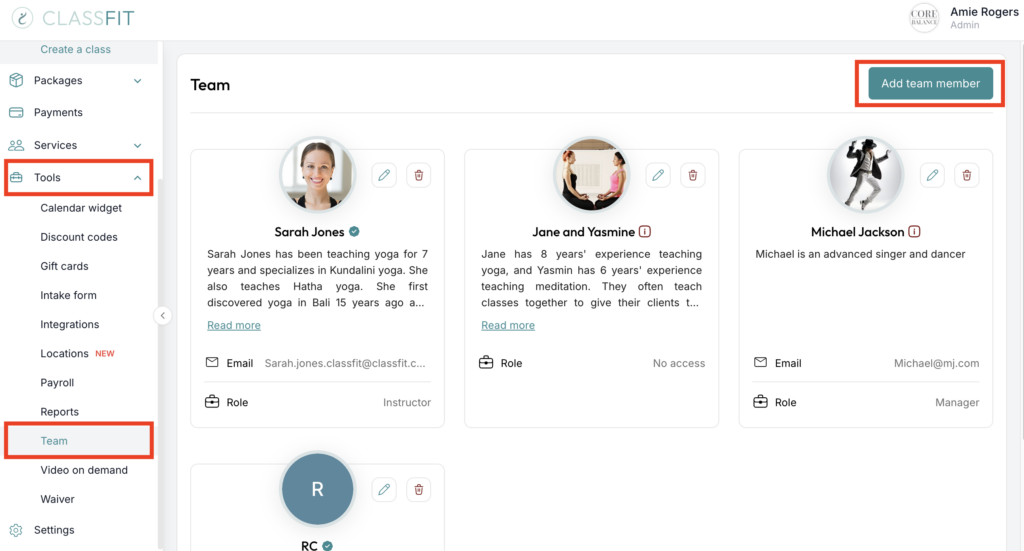
You can add a certain level of access to your instructors.

Editing and Deleting Teacher Profiles
You can edit or delete any of your teacher profiles further down the page. Once you’ve found the teacher’s profile you want to edit or delete, just click the pencil icon or trash icon. If you “Edit,” the original form you filled in will reappear above, where you can make your edits and click save. If you choose “Delete,” a popup will appear asking you if you are sure. If you are sure, click yes.
If you need any further help with this, please email [email protected].