

How to view all purchased packages
We understand it’s important to keep track of when your clients’ packages are due to expire, run out, or renew. To help you manage this, we’ve made it easy to view all purchased packages in one place.
Viewing Purchased Packages
In your ClassFit app, go to Packages on the left side menu and then click on Purchased Class Packages.
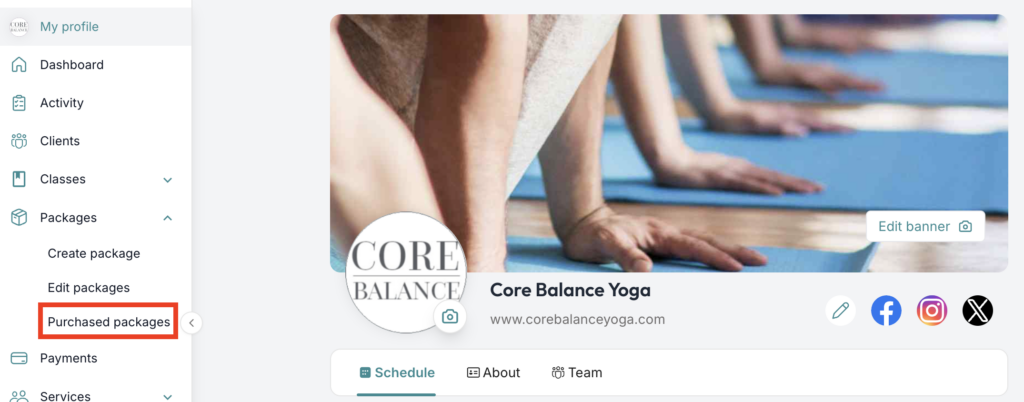
Review the List
You will now see a list of all purchased class packages. This page includes:
- Package Name
- Classes Left
- Cost
- Expiry/Renewal Date
- Status (e.g., Active, Cancelled)
- Actions (e.g., Edit)
Manage Packages
You can click on the pencil icon to view and manage details for each package, such as adjusting the expiry date or viewing the number of classes remaining.
We hope this article has been helpful. If you need any further assistance, please contact us at [email protected].