

Skip to content
  • Home
  • Pricing
  • Features
    • Features
    • Appointments
    • Booking Calendar
    • Business Profile Page
    • Check-In and Waitlists
    • Class Packs and Memberships
    • Client Profiles and History
    • Custom Branded Emails
    • Flexible Refund Policies
    • Instructor Profiles
    • Intake Forms and Waivers
    • Online Payment Processing
    • Online Streaming
    • Reports
    • Set-Up & Installation Services
    • Video On Demand
    • Your Customer’s Experience
    • Features
    • Appointments
    • Booking Calendar
    • Branded Apps
    • Business Profile Page
    • Check-In and Waitlists
    • Class Packs and Memberships
    • Client Profiles and History
    • Custom Branded Emails
    • Flexible Refund Policies
    • Instructor Profiles
    • Intake Forms and Waivers
    • Online Payment Processing
    • Online Streaming
    • Reports
    • Set-Up & Installation Services
    • Video On Demand
    • Your Customer’s Experience
  • Help
    • Book A Demo
    • ClassFit Blog
    • Contact Us
Login
Skip to main content
< All Topics

If you have a Shopify account, your can add a custom branded calendar to it. The ClassFit calendar will allow your clients to book and pay for all classes within Shopify. And you can custom brand it so it’s colors will perfectly match your business branding. This tutorial will show you how to integrate your calendar through Shopify. If you have a different type of website, please choose from our other tutorials below.

  • WordPress
  • Wix
  • Squarespace
  • Weebly
  • GoDaddy
  • Other website builders

Once you’re logged in to our website, click on Tools on the left side menu, then click Calendar Widget.
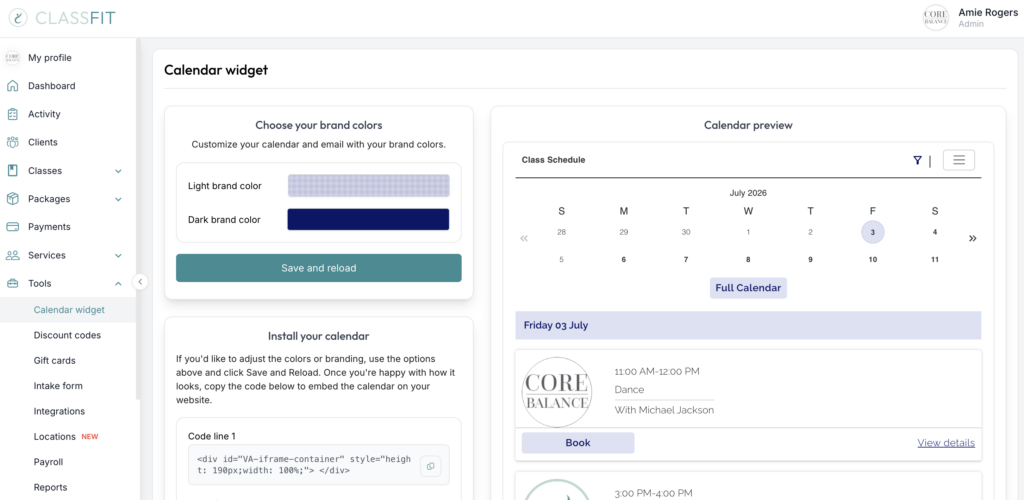
ClassFit calendar widget page showing brand color pickers and a live calendar preview

On this page you can select your light and dark brand colors. Start by selecting your brand colors, you can do this by clicking on the color and using the color picker, or by inserting the hex codes if you know them. Once we have all of this we will use your branding on all customer facing emails that relate to your business, and create your custom branded calendar.

After you’ve added your brand identity, we’ll show you a preview of what your calendar will look like in your website. If it’s not perfect the first time, don’t worry, you can go back and keep tinkering with the colours until it is just right.

Once you’re happy with your calendar branding, you can add it to your website. Click on Save and reload. Then scroll down, where you will see two lines of code. You will need to copy these lines of code onto the web page you want the calendar to appear. Where these lines go is slightly different depending on which type of website you have, so we will guide you through each website type below.

Adding your calendar through Shopify to your website

1. From your Online Store, go to Pages.

2. Click on the name of the page that you would like to embed the widget on. Or, create a new page by clicking the Add page button.

3. In the Rich Text Editor, click on the HTML button.

4. Now copy the two lines of codes from ClassFit.

5. Then paste the code into the HTML box.

6. Save your changes.

Now your new customized ClassFit calendar should be appearing perfectly on your Shopify account.

If you need any further help with this, please email [email protected].

Tags:
  • add calendar
  • adding calendar to shopify
  • adding your calendar to your shopify account
  • branding
  • calendar
  • custom brand
  • customize calendar
  • fitness class booking software
  • shopify
  • shopify url

Recent Posts

  • How to Build a Strong Gym Business Plan: 9 Essentials You Need to Succeed
  • Smart and Simple Ways to Manage Gym Memberships
  • Mastering Wellness Center Management: Tools to Grow Your Business with Ease
  • How to Run a Successful Gym: Avoid These 5 Common Mistakes
  • Build a Fitness Brand That Stands Out: Your Guide to Success

Recent Comments

No comments to show.

Archives

  • October 2025
  • September 2025
  • August 2025
  • July 2025
  • June 2025
  • May 2025
  • March 2025
  • February 2025
  • January 2025
  • December 2024
  • October 2024
  • September 2024
  • August 2024
  • July 2024
  • June 2024
  • April 2024
  • March 2024

Categories

  • Blog
  • Uncategorized
ClassFit
Studio Scheduling Software
  • Yoga & Pilates Scheduling Software
  • Fitness Scheduling Software
Terms
  • Terms & Conditions
  • Privacy Policy
  • Cookie Policy
About ClassFit
  • ClassFit Blog
  • Login
ClassFit

Simple scheduling software for studios and teachers. Save time, stay organised and grow your business.

Proud partner of

Yoga Alliance

Product

  • Booking calendar
  • Branded apps
  • Check in and waitlists
  • Online payment
  • Video on demand
Book a Demo ›

For Studios

  • Yoga Studios
  • Pilates Studios
  • Fitness Studios

Company

  • Blog
  • Help Centre
  • Contact Us

Legal

  • Terms & Conditions
  • Privacy Policy
  • Cookie Policy
  • GDPR / Data Protection
Trusted by studios across the world
No setup fees
No long contracts
Friendly support 7 days a week
Download the app
Download on the App Store
Get it on Google Play
© ClassFit 2026. All Rights Reserved.
Manage Consent
To provide the best experiences, we use technologies like cookies to store and/or access device information. Consenting to these technologies will allow us to process data such as browsing behavior or unique IDs on this site. Not consenting or withdrawing consent, may adversely affect certain features and functions.
Functional Always active
The technical storage or access is strictly necessary for the legitimate purpose of enabling the use of a specific service explicitly requested by the subscriber or user, or for the sole purpose of carrying out the transmission of a communication over an electronic communications network.
Preferences
The technical storage or access is necessary for the legitimate purpose of storing preferences that are not requested by the subscriber or user.
Statistics
The technical storage or access that is used exclusively for statistical purposes. The technical storage or access that is used exclusively for anonymous statistical purposes. Without a subpoena, voluntary compliance on the part of your Internet Service Provider, or additional records from a third party, information stored or retrieved for this purpose alone cannot usually be used to identify you.
Marketing
The technical storage or access is required to create user profiles to send advertising, or to track the user on a website or across several websites for similar marketing purposes.
  • Manage options
  • Manage services
  • Manage {vendor_count} vendors
  • Read more about these purposes
View preferences
  • {title}
  • {title}
  • {title}