

Adding your calendar to your GoDaddy website
If you have a website, you might want to add a custom branded calendar to it. The ClassFit calendar will allow your clients to book and pay for all classes from within your website. And you can custom brand it so its colors will perfectly match your business branding. This tutorial will show you how to integrate your calendar on a GoDaddy website. If you have a different type of website, please choose from our other tutorials below.
Once you’re logged in to our website, click on Tools on the left side menu, then click Calendar Widget.
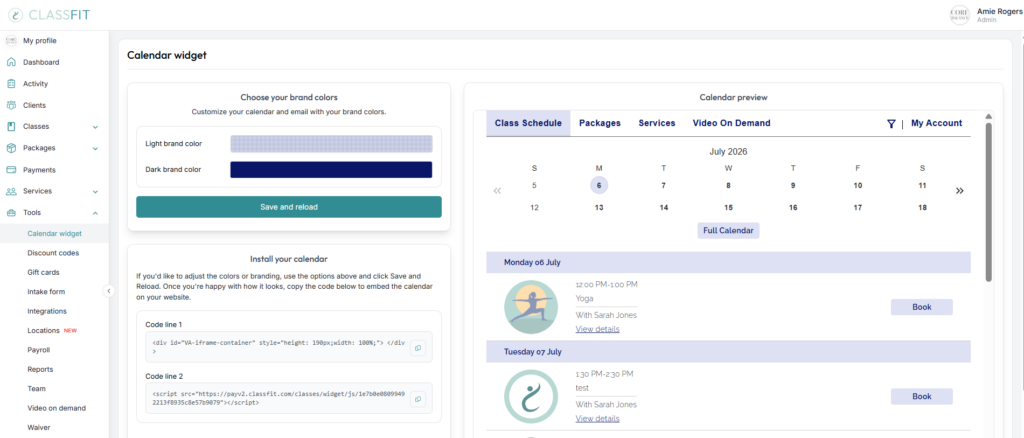
On this page you can select your light and dark brand colors. Start by selecting your brand colors, you can do this by clicking on the color and using the color picker, or by inserting the hex codes if you know them. Once we have all of this we will use your branding on all client-facing emails that relate to your business, and create your custom branded calendar.
After you’ve added your brand identity, we’ll show you a preview of what your calendar will look like in your website. If it’s not perfect the first time, don’t worry, you can go back and keep tinkering with the colors until it is just right.
Once you’re happy with your calendar branding, you can add it to your website. Click on Save and reload. Then scroll down, where you will see two lines of code. You will need to copy these lines of code onto the web page you want the calendar to appear. Where these lines go is slightly different depending on which type of website you have, so we will guide you through each website type below.
Adding your calendar to your GoDaddy website
Log in to GoDaddy and click Manage to open GoCentral. Click Edit Site. Navigate to the page you would like to add the calendar to and Add Section.
Scroll to the bottom of the Add Section panel and click HTML. Then click the Add button next to Embed custom code on the page.
Then copy each line of code from the ClassFit into the box that appears
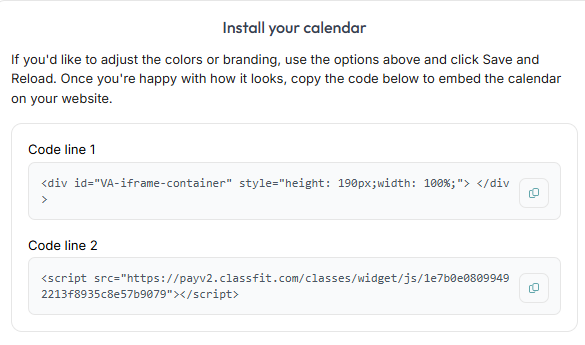
And paste each line of code into the “Custom Code box.
Click Done at the top of the HTML panel. Click Preview to see the results and when you’re happy with everything click Publish. Your widget should look similar to the picture below.
If you need any further help with this, please email [email protected].